

1. Getting started
On any coloring page, press "Color it online". The coloring screen opens large with just the picture and the tools, and no ads.
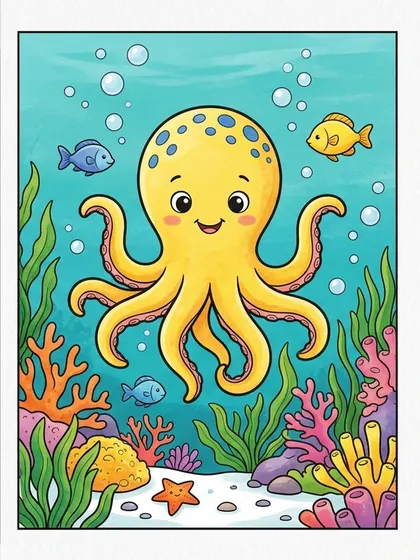
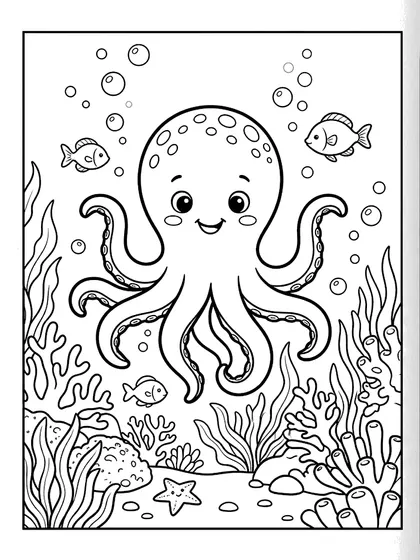
You color the black-and-white line art. The color reference is not for coloring; it sits beside the picture to help choose colors.
2. Three tools: fill, brush and eraser
- Fill: colors a closed area in one click, so even young children can fill large shapes.
- Brush: colors freely for small details. It comes in thin, medium and thick.
- Eraser: removes only your colors and keeps the black lines.
- Use Undo and Redo to step back and forward.
3. Choosing colors
"Suggested colors" at the top of the palette come from the page’s color reference (when the page has one), so following them gives a result close to the reference.
You can also pick from the basic colors or mix your own, and "Show reference" keeps the finished example beside your picture.
4. Autosave and saving your picture
Your coloring is saved automatically in this browser. Open the same page again later and choose "Continue". Nothing is sent to our server.
When you finish, Save downloads a PNG and Print prints it as colored. Clearing browser data or switching devices removes the autosave, so save finished pictures.
5. Computer, tablet and phone tips
- Computer: zoom with the wheel and hold the space bar to drag the picture.
- Shortcuts: F fill, B brush, E eraser, Ctrl+Z undo, Ctrl+Y redo.
- Tablet and phone: a stylus or finger works. In portrait, the tools and palette move to the bottom. Spread two fingers to zoom in, pinch to zoom out, and drag with two fingers to move the picture.
6. Mix screen and paper
Try color combinations on screen first, then print the same page and color it with crayons. Screen coloring lets beginners undo mistakes; paper coloring builds hand skills.
Pages used in this article
FAQ
Is online coloring free?
Yes. Every line-art page can be colored and saved for free.
Where is my picture saved?
Only in the browser on your device. It is not sent anywhere, so you cannot continue on another device. Save finished pictures as PNG.
Does it work on a phone?
Yes. Color with a finger and zoom with two fingers. The screen is small, so pages with many spaces can be fiddly; try pages with fewer spaces or a tablet.